

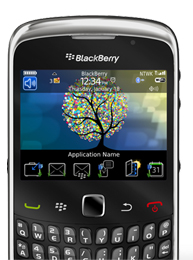
For optimal performance from your BlackBerry® smartphone, find out below about all the ways you can extend battery life, clean up your files and make more room in your memory for more photos and a new playlist or two.
Plus, even more tips and special offers be sure to sign up for BlackBerry updates.
Useful Tips For Conserving Battery Life
Close Your Unneeded Apps
Core applications like your Phone, Home screen and Messages always run in the background. Other apps you open and forget to close like Camera, music player, Google® Maps or Slacker Radio for example can affect battery life. So make sure you shut them down when you're done.
This is how you do it:
When finished using an app, press the ESCAPE key to shut it down completely. The red END key just minimizes the app into the background – but it's still running.
- 1. Press and hold the MENU key (on BlackBerry® Device Software 4.7 & earlier,
select "Switch Application".) - 2. Click the app you want to shut down
- 3. Press the ESCAPE key
- 4. Repeat steps 1 through 3 to shut down additional apps
Lower Or Turn Off Sound Notifications
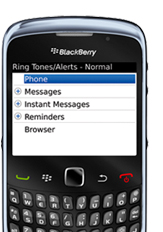
Sound notification is one of those things that can be a lot of fun to play with when you first get your BlackBerry smartphone. However, if you initially programmed every single incoming message to vibrate and ring no matter what, your battery is going to take a hit. So lower or turn off the ones you don't really need.
This is how you do it:
- 1. On the Home screen, click the
SOUNDS icon - 2. Click EDIT PROFILES and then click NORMAL
- 3. Change the Volume for items under Message,
Instant Messages and Reminders to level 2, 1
or Silent - 4. On the same screen set VIBRATION to Off
- 5. Press the MENU key and then click SAVE
Adjust Your Screen & Keyboard Settings
You'd be surprised by how a couple of simple tweaks to your BlackBerry smartphone's screen and keyboard settings can noticeably improve your battery life without affecting functionality.
This is how you do it:
- 1. On the Home screen or in a folder click the OPTIONS icon
- 2. Click SCREEN/KEYBOARD
- 3. Set the Backlight Brightness field to 80 or less
- 4. Set the Backlight Timeout field to 10 seconds
- 5. Set the Key Tone field to Off
- 6. Set the Audible Roll field to Mute
- 7. Press the MENU key and then click Save

Turn Your Smartphone On & Off Automatically
Want to conserve battery life for another 6 to 8 hours a day? Just set your smartphone to automatically turn off at a certain time at night and turn back on in the morning. It's the perfect way to make sure you have the juice you need to jumpstart your morning. Plus, it's also incredibly helpful if you're away and forgot your charger.
This is how you do it:
- 1. On the Home screen or in a folder click the
OPTIONS icon - 2. Click Auto On/Off
- 3. Set the Weekday field to ENABLED
- 4. Specify the times when your BlackBerry
smartphone should turn on and off on
weekdays - 5. Set the Weekend field to ENABLED
- 6. Specify the times when your BlackBerry
smartphone should turn on and off on
weekends - 7. Press the MENU key and then click Save
Out With The Old & In With The New
Set Up Auto Message Delete
Messages are notorious for just sticking around, even the ones that were sent to remind you to pick up milk. But every message sitting on your device takes up room you can use for more important things. That's why setting up your device to delete messages after a certain amount of time makes so much sense. You do it once, and from then on, it's automatic.
This is how you do it:
- 1. In a MESSAGE list press the MENU key
- 2. Click Options
- 3. Click General Options
- 4. Set the KEEP MESSAGES field
- 5. Press the MENU key
- 6. Click SAVE
Save Photos To Desktop
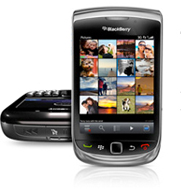
Nothing is more frustrating than taking the best photo of your life and finding out you can't save it to your album because your internal memory and SD card is full. Use BlackBerry® Desktop Software to transfer your memories to your desktop so you always have the room you need.
This is how you do it:
If you don't already have your FREE BlackBerry Desktop Software, download it here
- 1. Sync photos to your BlackBerry smartphone
from your PC or Mac - 2. Import photos to your PC or Mac
- 3. Control which of your photos are transferred
to your PC or Mac
Back Up Data & Update Your Playlists
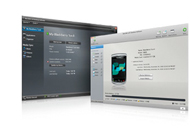
Heading into a new season usually means packing away your winter togs and replacing them with more appropriate items. Well it's time to do the same with your BlackBerry smartphone. Use BlackBerry Desktop Software to back up your old data and sync up iTunes or Microsoft® Windows Media® Player
to update your playlist.
This is how you do it:
If you don't already have your FREE BlackBerry Desktop Software,
download it here
- 1. Connect your BlackBerry device to your computer
- 2. When the BlackBerry Desktop Software opens click Device and then Back Up
- 3. Do one of the following:
- Click FULL to back up ALL your data
- Click QUICK to back up all data EXCEPT email messages
- Click CUSTOM to choose the data you want to backup
- 4. If you want to backup data from built-in media storage, select the built-in
media storage check box and choose the files you want to backup
- Change the default name of your backup file by typing a new name in the FILE name field
- Encrypt your data by selecting the Encrypt Backup File checkbox and typing a password
- Remember your settings without being prompted by selecting the Don't Ask For These Settings Again check box
Featured Smartphones in the Spotlight
Learn about the most up-to-date selection of smartphones that
BlackBerry has to offer:

Sign up today and you'll be on an exclusive list of those who are the first to hear of the very latest from BlackBerry. Get more out of your device by knowing about what it can do for you.