








For optimal performance from your BlackBerry® smartphone, find out below about all the
ways you can extend battery life, clean up your files and make more room in your memory
for more photos and a new playlist or two.
Plus, be sure to freshen up your Home screen by downloading a FREE new
spring theme designed exclusively for BlackBerry customers – and while you’re at it, don’t
forget to opt-in for updates.

Download Your FREE Spring Theme Now
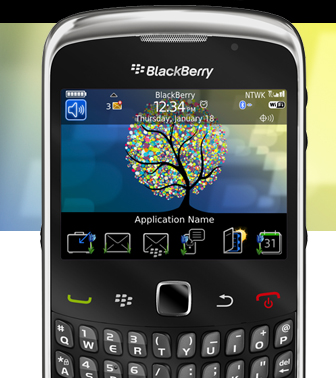
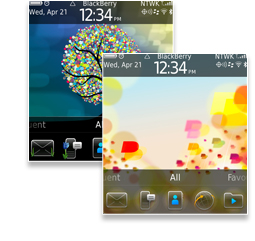
To help you celebrate spring we wanted to do something special. So freshen up your BlackBerry smartphone with one of two new FREE exclusive spring inspired themes. You’ll be able to customize the look of your home screen, icons, menus and more.
› Download your FREE spring inspired theme
and opt-in for updates while you’re there

Useful Tips For Conserving Battery Life
Close Your Unneeded Apps
Core applications like your Phone, Home screen and Messages always run in the background. Other apps you open and forget to close like Camera, music player, Google® Maps or Slacker Radio for example can affect battery life. So make sure you shut them down when you’re done.
This is how you do it:
When finished using an app, press the ESCAPE key to shut it down completely. The red END key just minimizes the app into the background – but it's still running.
- To check for and close apps running in the background:
- 1. Press and hold the MENU key (on BlackBerry® Device Software 4.7 & earlier,
select “Switch Application”.) - 2. Click the app you want to shut down
- 3. Press the ESCAPE key
- 4. Repeat steps 1 through 3 to shut down additional apps
Quick Links
Lower Or Turn Off Sound Notifications
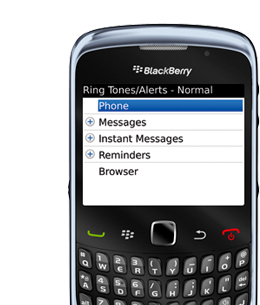
Sound notification is one of those things that can be a lot of fun to play with when you first get your BlackBerry smartphone. However, if you initially programmed every single incoming message to vibrate and ring no matter what, your battery is going to take a hit. So lower or turn off the ones you don't really need.
This is how you do it:
- 1. On the Home screen, click the SOUND AND ALERT PROFILE icon
- 2. Click CHANGE SOUND AND ALERTS then click SOUNDS FOR SELECTED PROFILE
- 3. Change the Volume for items under Messages – Notifiers, Instant Messages – Notifers,
Events – Reminders and Other Applications – Notifiers to 2, 1, or Silent - 4. On the same screen set VIBRATION to Off
- 5. Press the MENU key and then click SAVE
Adjust Your Screen & Keyboard Settings
You’d be surprised by how a couple of simple tweaks to your BlackBerry smartphone’s
screen and keyboard settings can noticeably improve your battery life without affecting
functionality.
This is how you do it:
To Adjust Backlight:
- 1. On the Home screen or in a folder click the OPTIONS icon
- 2. Click DISPLAY and then click Screen Display
- 3. Set the Backlight Brightness field to 80 or less
- 4. Set the Backlight Timeout field to 10 seconds
- 5. Press the MENU key and then click Save
To Adjust Key Tone:
- 1. On the Home screen or in a folder click the OPTIONS icon
- 2. Click TYPING AND INPUT and then click Keyboard
- 3. Clear the Key Tone check box
- 4. Press the MENU key and then click Save
To Adjust Audible Roll:
- 1. On the Home screen or in a folder click the OPTIONS icon
- 2. Click TYPING AND INPUT and then click Trackpad Sensitivity
- 3. Clear the Audible Roll check box
- 4. Press the MENU key and then click Save

Turn Your Smartphone On & Off Automatically
Want to conserve battery life for another 6 to 8 hours a day? Just set your smartphone to automatically turn off at a certain time at night and turn back on in the morning. It's the perfect way to make sure you have the juice you need to jumpstart your morning. Plus, it's also incredibly helpful if you're away and forgot your charger.
This is how you do it:
- 1. On the Home screen or in a folder click the OPTIONS icon
- 2. Click Device and then click Auto On/Off
- 3. In the Weekday section check the ENABLED box
- 4. Specify the times when your BlackBerry smartphone should turn on and off on weekdays
- 5. In the Weekend section check the ENABLED box
- 6. Specify the times when your BlackBerry smartphone should turn on and off on weekends
- 7. Press the MENU key and then click Save

Out With The Old & In With The New
Set Up Auto Message Delete
Messages are notorious for just sticking around, even the ones that were sent to remind you to pick up milk. But every message sitting on your device takes up room you can use for more important things. That’s why setting up your device to delete messages after a certain amount of time makes so much sense. You do it once, and from then on, it’s automatic.
This is how you do it:
- 1. In a MESSAGE list press the MENU key
- 2. Click Options
- 3. Click General Options
- 4. Set the KEEP MESSAGES field
- 5. Press the MENU key
- 6. Click SAVE
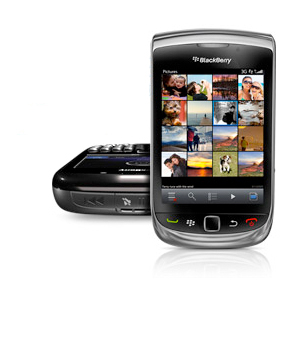
Save Photos To Desktop
Nothing is more frustrating than taking the best photo of your life and finding out you can’t
save it to your album because your internal memory and SD card is full. Use
BlackBerry® Desktop Software to transfer your memories to your desktop so you always have the room you need.
This is how you do it:
If you don’t already have your FREE BlackBerry Desktop Software, download it here
Once downloaded you will be able to easily:
- 1. Sync photos to your BlackBerry smartphone from your PC or Mac
- 2. Import photos to your PC or Mac
- 3. Control which of your photos are transferred to your PC or Mac
Back Up Data & Update Your Playlists
Heading into a new season usually means packing away your winter togs and replacing them with more appropriate items. Well it’s time to do the same with your BlackBerry
smartphone. Use BlackBerry Desktop Software to back up your old data and sync up iTunes or Microsoft® Windows Media® Player to update your playlist.
This is how you do it:
If you don't already have your FREE BlackBerry Desktop Software, download it here
Once your FREE BlackBerry Desktop Software downloaded:
- 1. Connect your BlackBerry device to your computer
- 2. When the BlackBerry Desktop Software opens click Device and then Back Up
- 3. Do one of the following:
- • Click FULL to back up ALL your data
- • Click QUICK to back up all data EXCEPT email messages
- • Click CUSTOM to choose the data you want to backup
- 4. If you want to backup data from built-in media storage, select the built-in media storage
check box and choose the files you want to backup
Once you decide on your backup plan you can choose to do any of the following:
- • Change the default name of your backup file by typing a new name in the FILE name field
- • Encrypt your data by selecting the Encrypt Backup File checkbox and typing a password
- • Remember your settings without being prompted by selecting the Don't Ask For These
Settings Again check box

Sync Music with BlackBerry 6 OS Using Wi-Fi
Use the convenience of your Wi-Fi® network to take full advantage of all the songs and
playlists you have in the iTunes or Windows Media libraries on your computer without
having to hook up.
This is how you do it:
Prerequisites: BlackBerry® Media Sync
If you're running BlackBerry® 6 OS you can sync your music using a Wi-Fi® connection. But before you start, check the following:
- • Your device and your computer that has the BlackBerry Desktop Software installed on it must be connected to the same Wi-Fi network.
- • The Wi-Fi connection for your device must be turned on. Wi-Fi Music Sync is installed, in which case the Wi-Fi connection for your device should turn on automatically.
- • The Wi-Fi router for your computer that is associated with your device must be turned on.
- • Your computer must be connected to your Wi-Fi router. If your computer uses a wired connection instead of Wi-Fi technology, it must be connected to the same network router.
- • If your device is associated with a BlackBerry® Enterprise Server, the IT policies on your device must allow Wi-Fi connections. For more information, contact your administrator.
Install Wi-Fi music sync on your device
If you did not install Wi-Fi music sync when you added your BlackBerry device to the
BlackBerry Desktop Software, you can install Wi-Fi music sync using the following steps.
- 1. Connect your device to your computer.
- 2. In the BlackBerry Desktop Software, click Tools > Wi-Fi music sync.
- 3. In the Wi-Fi Music Sync window, click Yes. On the next screen, click Finish.
- 4. On the confirmation screen, note the Wi-Fi requirements and click Close.
- 5. Click Music to synchronize the songs on your computer with your device. The first time that you do this for Wi-Fi music sync, you must keep your device connected to your computer with USB cable.
Your Wi-Fi connection status and any other connectivity updates for Wi-Fi music sync appear at the bottom of the BlackBerry Desktop Software screen.
Connect to a Wi-Fi network on your device
- 1. On your BlackBerry® device, on the Home screen, click the top of the screen, or click the Manage Connections icon.
- 2. Click Set Up Wi-Fi.
- 3. If you want to connect to a public hotspot or to a Wi-Fi network that does not require authentication, select the Show Open networks only check box.
- 4. Click the Wi-Fi network that you want to connect to.
- 5. If the Wi-Fi network requires authentication, type a password for the network.
The name of the Wi-Fi network appears at the top of the Home screen.
› Back to TopFind Your Favorites Easily
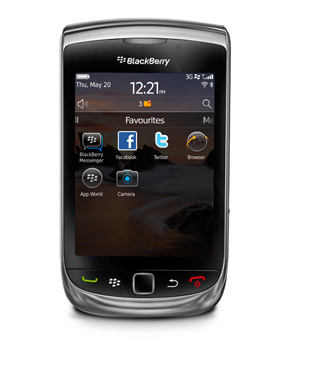
Stop searching for the people, places or things you connect with the most. Instead, put the contacts, apps or anything else you use all the time in one convenient place right on the home screen.
This is how you do it:
To add a website, app, map location or people to your Home screen:
- 1. On the Home screen click the appropriate icon (example: Map icon)
- 2. Once open, press ADD TO FAVORITE and then OK
To add a contact to your Home screen:
- 1. In CONTACTS highlight the contact you want to add
- 2. Press the MENU key
- 3. Select Add to Home Screen and then click ADD

Sign up today and you'll be on an exclusive list of those who are the
first to hear of the very latest from BlackBerry. Get more out of
your device by knowing about what it can do for you.

Download Your FREE Spring Theme
To help you celebrate spring we wanted to do something special. So freshen up your BlackBerry smartphone with a choice of two new FREE exclusive spring inspired themes. You'll be able to customize the look of your home screen, icons, menus and more.